AI image templates
Start with a useful prompt structure, not a blank box.
Choose an image template, add what makes the result yours, and create from a starting point that already includes a prompt structure, recommended model, and aspect ratio.
Create image

How templates work
A template gives you a starting point. You still decide the picture.
Use a template when you know the kind of image you need but do not want to build every prompt from scratch. Each template starts with a creative structure for a use case such as a product visual, social post, portrait, interior, or thumbnail.
Open the template, then add your product, person, scene, style, or other details. The create flow keeps the template’s prompt structure, recommended model, and aspect ratio as a starting setup that you can use for your own result.
- 01
Choose a template that matches the job you are doing.
- 02
Add the subject, scene, or details that matter for this image.
- 03
Create the image, then keep the finished work in Assets for review, download, or later reuse.
Portrait
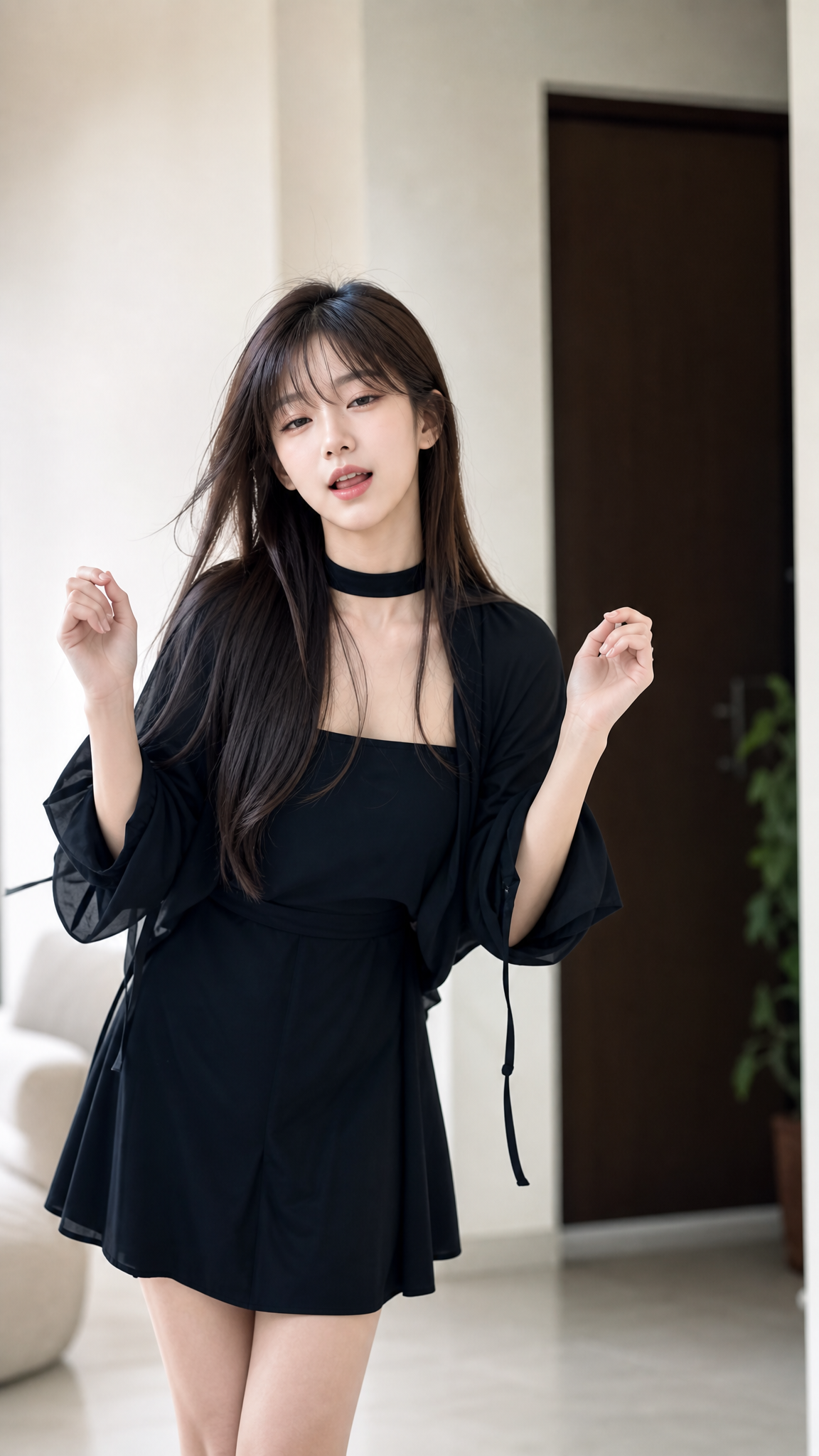
An irresistibly alluring young girl

Cozy Cafe Editorial Portrait

Early 1990s Flash Portrait

Japanese Graffiti Portrait

Cubist Kawaii Vector Portrait

Profile / Avatar - Split Face Photo and Ink Illustration

Profile / Avatar - Cozy Pink Bathroom Portrait

Kyoto Geisha Moment

Luxury Fragrance Campaign Portrait

Profile / Avatar - Japanese Hoodlum Anime Fairy

Three-Panel Film Art Grid

YouTube Thumbnail - Street Glamour Cake Knife Portrait

Social Media Post - Stressed Woman with Drip Ice Cream

Profile / Avatar - Ginger Woman with Teddy Bear

E-commerce Main Image - Ultra-Realistic Boutique Mirror Selfie

Social Media Post - Luxury Skincare Spa Selfie

Product Marketing - Seaside Deck Fashion Portrait

Profile / Avatar - Realistic iPhone Photo Rainy Taxi Night
Portrait

Cinematic Scientist Portrait

Crime Novel Book Cover "The Shadow Detective"

Product Marketing - Celebrity Fitness Apparel Generator

YouTube Thumbnail - Cinematic Vigilante Graphic Poster

Dynamic Superhero Action

Game Asset - Celebrity Stormtrooper Style Portrait

Quirky Independent Short Film Festival Poster
Character


Scene


Product

Infographic / Edu Visual - Content creator journey infographic

Infographic / Edu Visual - Exploded View DSLR Infographic

E-commerce Main Image - Miniature Diorama Skincare Advertisement

Charming Rustic Farmers Market Poster

Luxury Chronograph Watch Ad

Game Asset - Handcrafted Paper-Cut Style Illustration

Game Asset - Souls-like Snail Creature Design
Advertising


Brand

Play-Doh City Editorial

Vintage Travel Postage Stamp

Chibi 3D Mini Me Photo Effect

Vintage Paper Collage Set

Brand Identity Moodboard System

Profile / Avatar - Realistic Paper Sculpture Portrait

Profile / Avatar - Cinematic Golden Elevator Portrait

Software Developer Recruitment Flyer

Istanbul Line-Art Travel Poster

Infographic / Edu Visual - Watercolor Travel Poster Fusion
Diagram

Wildlife Infographic Reference Poster

Infographic / Edu Visual - Minimalist NYC Sketch Poster

Illustrated Guide to Contemporary Chinese Novelists

Handwritten Study Infographic Poster

Infographic / Edu Visual - 3D Character Design Infographic

Infographic / Edu Visual - Wind Turbine Technical Schematic

Infographic / Edu Visual - Vintage Scientific Blueprint Dessert

3D Cutaway Volcano Diagram

Neo-Noir Character Design Board

Vintage Chalkboard Heart Anatomy

Vintage Patent Document for an Invention

Printable Paint by Numbers

Infographic / Edu Visual - Lagos Cafe Realism Study
Social

Profile / Avatar - 3D Miniature Instagram Diorama

Social Media Post - Kawaii Chibi Sticker Sheet

Profile / Avatar - Ultra-Realistic Wet Bathroom Selfie

YouTube Thumbnail - Cinematic Moonlight Rooftop Portrait Collage

Social Media Post - Anatolian Kilim Motif Makeup Art

Nick and Judy Pink Beach Instagram-Style Selfie

Cinematic Solo Travel Shot

Y2K Digital Camera Selfie

Playlist Mood Album Cover

Dynamic Female Athlete Workout Shot


Pet


Comic

E-commerce Main Image - 9-Panel Product TVC Storyboard

12-Panel Storyboard Poster

Comic / Storyboard - Dragon and Burning Kingdom

Comic / Storyboard - Gritty urban pencil sketch portrait

Burger hero image plus 9-cell ad storyboard

Comic / Storyboard - Cosmic Emperor Black Hole Throne

Comic / Storyboard - Knight in Tunnel Scene

Profile / Avatar - Indoor Photorealistic Woman Portrait

Comic / Storyboard - Isometric Zen Woman Line Art

Nick and Judy Chibi Hand-Drawn Illustration

Underwater Fish Artist Studio
Game


Food


Fashion


Festival


Related models
Continue from here
Open the next part of the workflow.
Questions about templates
Do I need to write a complex prompt before using an image template?
No. A template gives you a prompt structure, recommended model, and aspect ratio to begin with. Add the subject or creative direction you need, then adjust the setup if you want to.
What happens after I create an image from a template?
You can review the finished work in Assets, download it, and return to its prompt and settings when you want to use that context again.